
RPS 3D PDF Tutorial
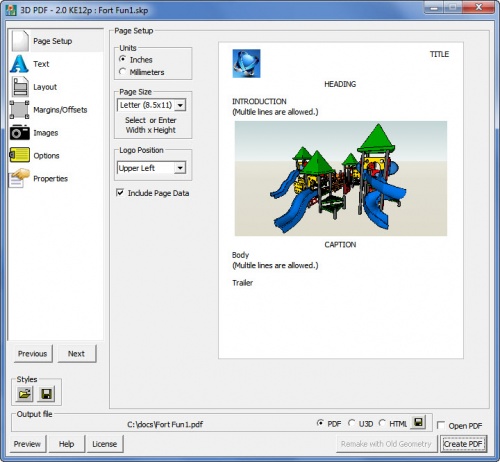
{{Title|RPS 3D PDF creates interactive Acrobat documents from SketchUp models. |This RPS 3D PDF Tutorial will help you create an interactive PDF document from SketchUp that can be read with Adobe Acrobat Reader.
Contents
Downloads and Installation
We offer a free 30-day trial for any of our products. These are fully functional versions, with no watermarks added to indicate that it is a trial version.
Follow the links on the Downloads Page to download the latest version.
Initial Usage
After installing RPS 3D PDF, the PDF toolbar should appear in SketchUp. If it does not appear, make sure RPD 3D PDF is enabled in the SketchUp/Preferences/Extensions window.
- Load a model and click the center icon to create a 3D PDF (The icon on the left loads an about dialog. The icon on the right reloads previous 3D PDFs you have made.).
- For your first 3D PDF, check Open PDF, and click Create PDF. The model will be extracted, a PDF created, and the PDF should load in Adobe Reader.
- Click and drag the mouse over the image area to orbit and examine the model in the 3D PDF file.
Interactive 3D
If the image appears properly, you can spin it by dragging the mouse over the image.
A toolbar will appear above the image:

The three icons on the left are for: Rotate, Pan, and Zoom.
The "House" icon will restore the view you were in when you saved the model in SketchUp. Other views are available from the view dropdown.
Click them and try them out.
Page Setup
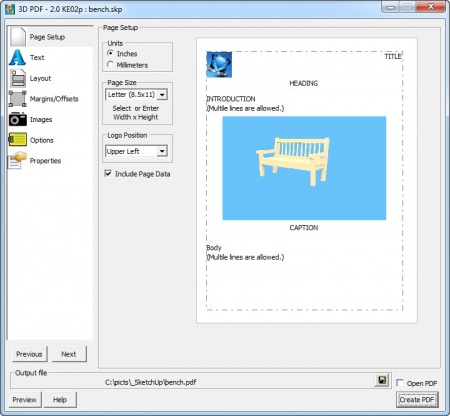
Page Setup Tab
The 3D PDF Setup Wizard Sets the page layout and all other options for creating your 3D PDF document.
For your first document, just use the Page Setup Tab as is, and click Create PDF in the lower right to create a document.
After you have sen how the document looks and how it works, then then other options will make more sense.
- Previous, Next - switch between pages.
- Preview - preview the page layout without 3D content.
- Help - Load the Online Help Page.
- Open PDF - Open the PDF file after creating it.
- Create PDF - Create the PDF File/
- Layout - Load or save all settings to a disk file. You can load a saved style, or also load styles from a previously created PDF file.
Page setup
- Units - Inches or Millimeters
- Page Size - select he size of the 3D PDF page. You can also type a size, such as 4 x 6 for a 4" by 6" page
- Logo Position - Upper left, etc.
- Include Page Data includes text on page as well as the 3D Area.
Text, Fonts and Sizes
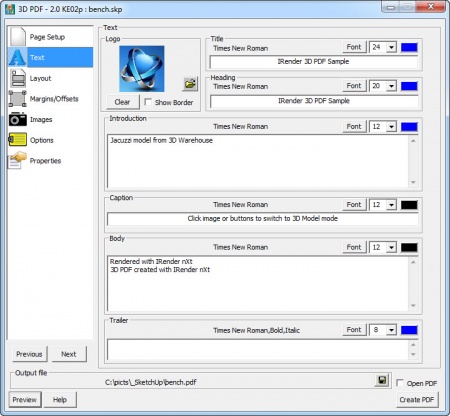
Text, Fonts and Sizes
- Logo - Select Logo image and position.
- Text Areas - Enter the desired text for each section of the page:
- Title
- Heading
- Introduction
- Caption
- Body
- Trailer
- Fonts - Select the Face Name, Font size, or color for each text Area.
Layout Tab
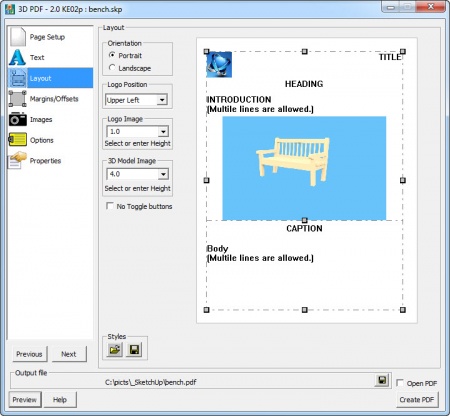
Layout Offsets Tab
- Orientation - Portrait or Landscape
- Logo Position - Upper Left, etc.
- Logo Image - Select or enter height on paper in inches or mm.
- 3D Model Image - Select or enter height on paper in inches or mm. You can also use the small square handle below the image to adjust its height.
- No Toggle Buttons 0 un-checking this will suppress the two buttons - Show Image and Show Model in the rendering.
Margins and Offsets
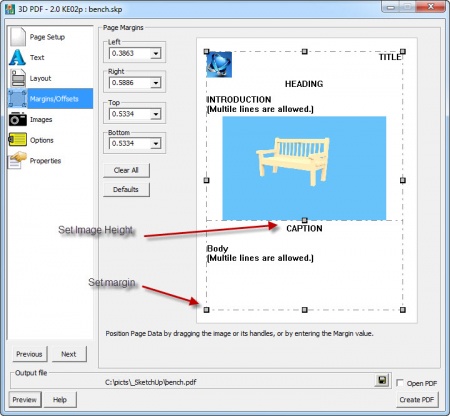
Margins and Offsets Tab
You can used the square handles at the corners of the margins to adjust the margins, or the square handle at the bottom of the image area to adjust the image area.
- Margins - set values for margins in inches or mm
- Clear All - set all margins to 0 - to fill the page with the image.
- Defaults - restore default margins.
Images
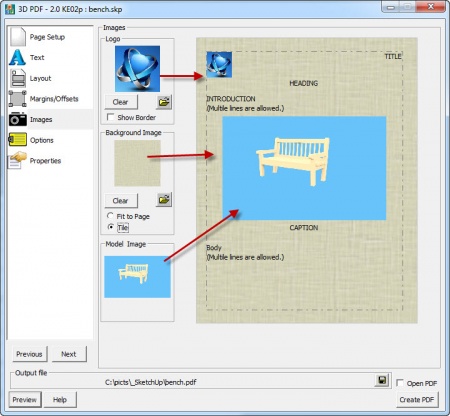
Images Tab
Upload and make settings for Images.
- Logo
- Show Border
- Background Image - background for entire page.
- Model Image - area where image and 3D model are displayed.
Options Tab
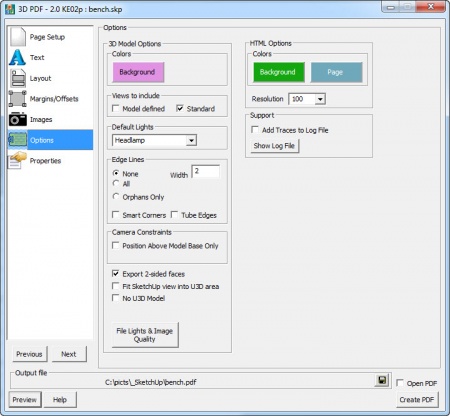
Options Tab
- Background color
- Views to include - Model scenes, Standard views, none, or both
- Default Lights - none of these work as well as you would hope in Adobe Reader - Headlamp is a good choice.
- Edge Lines - if selected, will generate 3D geometry to replicate SketchUp edges and add it to the 3D PDF model.
- Camera Constraints - if checked, then the user cannot orbit below the model.
- Export 2-sided faces - If checked, both sides of each face are processed. This is necessary if some objects are ot closed, or if some faces in the model are reversed.
- Fit SketchUp view into U3D area
- No U3D model - makes a PDF with the SketchUp image, but no 3D content.
Properties
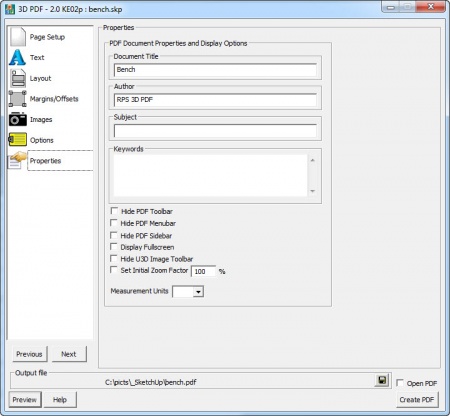
Properties Tab
Document Options
- Document Properties - These appear when the user looks at the PDF Document Properties in Acrobat Reader (Ctrl-D)
- Title
- Author
- Subject
- Keywords
- PDF Document Display Options
- Hide PDF Menu
- Hide PDF Toolbar
- Hide PDF Sidebar
- Display Fullscreen
- Hide U3D Image Toolbar - suppress the initial showing
- Hide PDF Menu
Embedding in web page
3D PDF files can be embedded into a web page using the HTML EMBED format.
     <object data="http://www.renderplus.com/pdf_samples/embedded_pdf_sample.pdf" width="400" height="500">
       <embed><src="http://www.renderplus.com/pdf_samples/embedded_pdf_sample.pdf"  width="400" height="500"> </embed>
     </object>
For more detailed information on how to do this, see: Embedded 3D PDF
See also
Documentation and other tutorials
External links
- IRender nXt Forum Render Plus Home Page, Forum and Help Desk
- IRender nXt Image Gallery
- Render Plus Products