
Camera Light
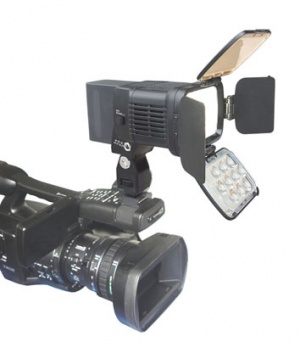
The page explains how to create and user a Camera Light
It is often very difficult to place enough lights in your drawing to be fully realistic. Ambient light settings help with this, but often produce a flat effect. By placing movable lights, attached to the camera you can add effective illumination and highlighting which will be used for all views.
Lights which move with your camera make it easier to illuminate scenes with out having to place lights for every view angle you may want to use.
You can, and should, add lights to your scene - especially lights which will appear in the rendered image. However, a couple of lights placed near the camera will provide good illumination for the rest of the scene.
Contents
How to use a Camera Light
Step1 - create camera light
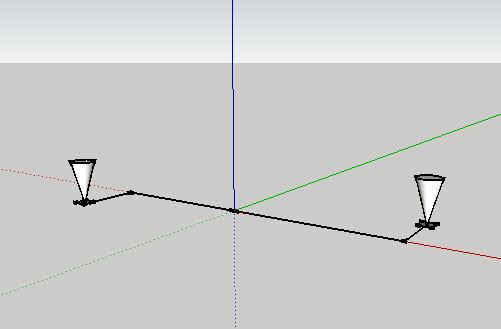
Create a component with one or more lights in it.
- The origin of the component should bet in the location where it will snap to the camera.
- The blue axis will be aligned to the line from the camera to the eye.
- The green axis be aligned to the camera's up vector.
- The red axis will be aligned perpendicularly to the up vector - usually left and right of the camera.
Place any geometry or attributes in the camera_light component which will help illuminate the scene. (The construction lines will not effect the scene)
Do not place any geometry which will obstruct the camera.
Save the component as 'camera_light
Step 2 - place camera_light component in a drawing
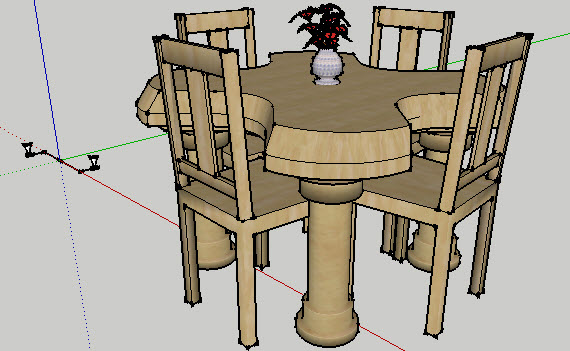
It does not matter where you place it, it will be snapped into position when you align it.
Step 3 - Align camera_light to camera
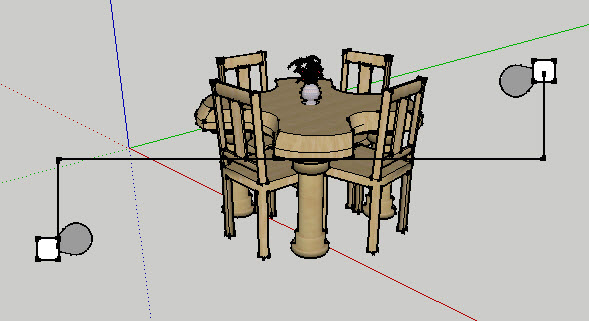
(Zoomed out a bit so that we can see it).
Select Align Camera Light from the plugins menu.
When aligned properly you will not be able to see it.
For testing, it may be handy to zoom out to let you see how the camera has been placed.
Step 4 - Render model with camera light
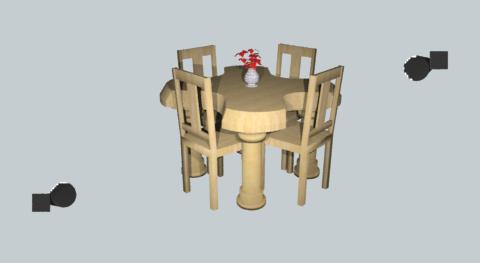
(Zoomed out a bit. Normally the camera light would not be visible
(Rendered with IRender nXt. No other lights in model.)
Creating a Camera Light in Render Plus
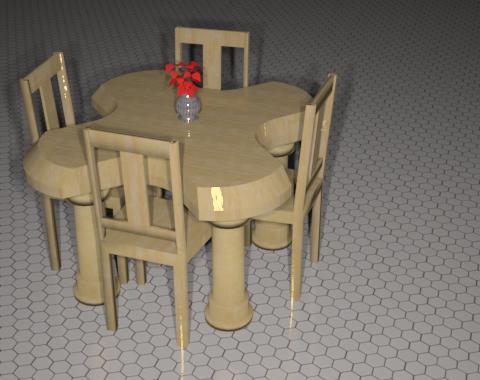
(Note: This image is a little extreme because there are no other lights. Normally you would use the camera lights to augment other lighting.
You can automatically create camera lights in Render Plus from the Create Lamp or Light Fixture Wizard.
- See: Camera Light Tab
Tips
- Two or more spotlight will usually provide the best effect.
- Normally the camera light will not be your only light. It is intended to augment other lighting.